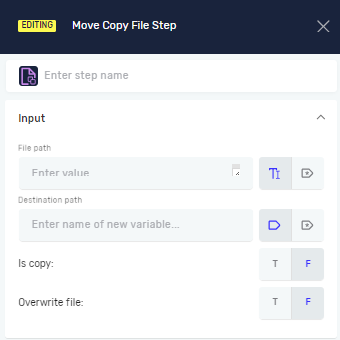
Move Copy File Step
The Move Copy File Step lets you move or copy a file from one folder to another. You can choose to replace an existing file at the destination.
How to Use the Move Copy File Step
Add this step to your process to manage files in your automation.
Step 1: Add the Move Copy File Step
- Drag and drop the Move Copy File Step into your process workflow.
- (Optional) Give the step a custom name in the Step name field. This helps you find it in your process.
Step 2: Configure File Paths
- In the File path field, enter the full path to the file you want to move or copy.
- You can use an existing string variable or type the path directly.
- In the Destination Path field, enter the full path for the new location. This includes the new file name.
- You can use an existing string variable or type the path directly.
Step 3: Choose Action and Overwrite Options
- For Is Copy, select
Tto copy the file. SelectFto move the file (this is the default). - For Overwrite File, select
Tto replace an existing file at the destination. SelectFto prevent overwriting (this is the default).
Parameters Explained
Step name (Optional)
- A custom name for the process step.
- Example: "Move Report to Archive"
- Use this to make your process easier to understand.
File path (Required)
- The complete path to the file you want to move or copy.
- Example:
C:\Reports\DailyReport.xlsx - You can use a variable that holds the file path.
Destination Path (Required)
- The complete path to the new location, including the new file name.
- Example:
C:\Archive\DailyReport_2023.xlsx - You can use a variable that holds the destination path.
Is Copy (Required)
- Says if the file is copied or moved.
T(True): Copies the file. The original file stays where it is.F(False): Moves the file. The original file is deleted after being moved. This is the default setting.
Overwrite File (Required)
- Says if an existing file at the destination should be replaced.
T(True): Replaces the file if one with the same name already exists at the destination.F(False): Does not replace the file. If a file with the same name exists, the operation might fail. This is the default setting.
Related Articles
Need Help?
Can't find what you're looking for? Join the Robotiq Community to get help from other users and the Robotiq team.