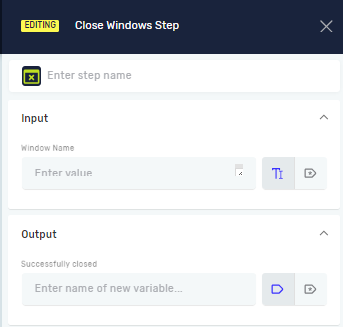
Close Windows Step
The Close Windows Step closes a specific application window. You can use this step to manage which applications are open while your automation runs.
How to Use the Close Windows Step
Add this step to your process to close an application window. The step sends a double-click command to the window.
Step 1: Add the Close Windows Step
- Open your process in the Robotiq.ai editor.
- Drag and drop the Close Windows Step into your workflow.
Step 2: Configure the Step
- Select the Close Windows Step in your process.
- In the properties panel, set the parameters it needs.
Parameters Explained
Step name (Optional)
- A custom name for the process step. This name shows up on the step box in the editor.
Window Name (Required)
- The name of the application window you want to close.
- This is the title you see on the window.
- Example: "My Application - Document1"
Successfully closed (Required)
- The name of a new or existing true/false variable.
- This variable will be
Trueif the window closed, orFalseif it didn't.
Related Articles
- Open Window Process Step - Robotiq.ai Help Center
- Terminate Window Application Step - Robotiq.ai Help Center
- Close Selenium Step - Robotiq.ai Help Center
Need Help?
Can't find what you're looking for? Join the Robotiq Community to get help from other users and the Robotiq team.