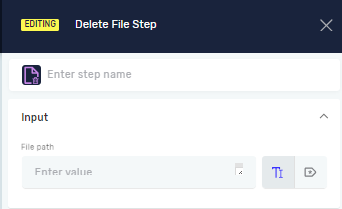
Delete File Step
The Delete File Step gets rid of a specific file on your system. Use it to clean up temporary files or handle documents as part of a process.
How to Use the Delete File Step
Add this step to your process when you need to delete a file.
Step 1: Add the Delete File Step
- Open your process in the Robotiq.ai Studio.
- Drag the Delete File Step from the Steps panel into your workflow.
Step 2: Set the File Path
- Click on the Delete File Step in your workflow.
- In the properties panel, find the File path setting.
- Type in the full path to the file you want to delete. You can use a string variable or type the path directly.
Example: C:\Users\YourUser\Documents\temp_report.xlsx
Parameters Explained
Step name (Optional)
- A custom name for this step in your process.
- This name shows up on the step box in the editor.
File path (Required)
- The full location of the file you want to delete.
- You can use a string variable you've already set up that contains the file path.
- Example:
myFilePathVariableor"C:\Data\old_file.txt"
Related Articles
- Delete Folder Step - Robotiq.ai Help Center
- Rename File Step - Robotiq.ai Help Center
- String Input Step - Robotiq.ai Help Center
Need Help?
Can't find what you're looking for? Join the Robotiq Community to get help from other users and the Robotiq team.