Delete Column In Data Table Step
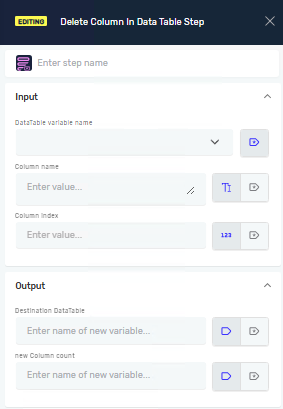
The Delete Column In Data Table step takes a column out of an existing Data Table variable. Use this step to clean up data tables by getting rid of columns you don't need.
How to Use Delete Column In Data Table
Use this step to remove a column from a Data Table. You can pick the column by its name or its number.
Step 1: Add the Delete Column In Data Table Step
- Drag and drop the Delete Column In Data Table step into your process.
Step 2: Set Up Input Parameters
- In the step properties, type the DataTable name. This is the name of the Data Table variable you want to change.
Choose how to find the column to delete:
- Type the Column name (like
"Email Address") if you know the column's title.
Type the Column index (like 2 for the third column) if you know its number.
Important: You need to give either a Column name or a Column index, but not both.
Step 3: Set Up Output Parameters
- For Result DataTable, give a variable name. This variable will hold the Data Table after the column is gone. You can use a Data Table variable you already have or make a new one.
- For Column count, give a variable name. This number variable will hold how many columns are left in the Data Table after the deletion.
Parameters Explained
Step name (Optional)
- A custom name for the process step. This helps you find the step in your workflow.
DataTable name (Required)
- The name of the Data Table variable you want to change.
- Example:
myDataTable - Use this to say which table to work with.
Column name (Required if 'Column index' is empty)
- The name of the column you want to remove.
- Example:
"Old Data Column" - Use this when you know the column's title.
Column index (Required if 'Column name' is empty)
- The number for the column you want to remove. Columns start counting at
0, so the first column is0, the second is1, and so on. - Example:
3 - Use this when you know where the column is.
Result DataTable (Required)
- The variable that will hold the Data Table after the chosen column is removed.
- Example:
updatedDataTable - This output variable has the changed Data Table.
Column count (Required)
- A number variable that will hold how many columns are in the
Result DataTable. - Example:
remainingColumnCount - This tells you how many columns are left after the action.
Related Articles
- Add Column In Data Table Step
- Delete Row In Data Table Step
- Create New Data Table Step
- Save Data Table To Excel File Step
Need Help?
Can't find what you're looking for? Join the Robotiq Community to get help from other users and the Robotiq team.