Rename Excel Sheet Step
The Rename Excel Sheet Step changes the name of a sheet inside an Excel file. Use this step to keep your Excel data organized or to change sheet names as your process runs.
What You'll Need
- An open Excel file connection. You have to use the "Open Excel File" step before this one.
How to Use the Rename Excel Sheet Step
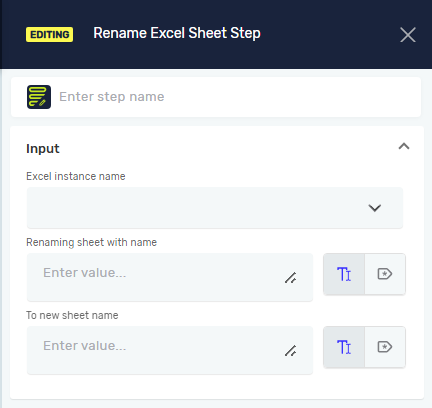
This step changes the name of a specific sheet in an open Excel workbook.
Step 1: Add the Rename Excel Sheet Step
- Drag the Rename Excel Sheet Step into your process workflow.
- (Optional) Give the step a custom name in the Step name field. This helps you find the step in your process.
Parameters Explained
Excel instance name (Required)
- This is the unique name for your Excel connection.
- It needs to be the same name you set in the "Open Excel File" step.
- Example:
myExcelFile
Sheet name (Required)
- The current name of the Excel sheet you want to rename.
- You can type in a name or use a variable that holds the sheet's name.
- Example:
Sheet1orcurrentSheetNameVariable
New sheet name (Required)
- The new name for the Excel sheet.
- You can type in a new name or use a variable for it.
- Example:
ProcessedDataornewSheetNameVariable
Related Articles
Need Help?
Can't find what you're looking for? Join the Robotiq Community to get help from other users and the Robotiq team.