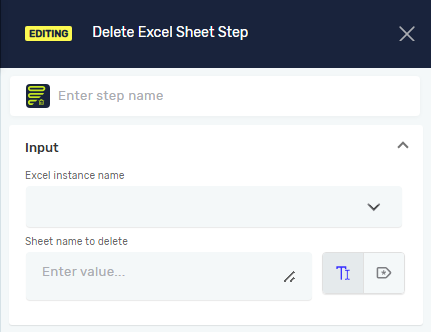
Delete Excel Sheet Step
The Delete Excel Sheet Step gets rid of a specific sheet from an Excel file you've already opened. Use this step to clean up your Excel workbooks when you're automating tasks.
What You'll Need
- An open Excel file connection. You have to use the Open Excel File step before this one.
How to Use the Delete Excel Sheet Step
Add this step to your process to remove a sheet you don't want from an Excel file.
Step 1: Add the Delete Excel Sheet Step
- Drag and drop the Delete Excel Sheet Step into your process workflow.
- Click on the step to set up its properties.
Step 2: Set Up the Step Parameters
- Type in the Excel instance name. This is the name you gave your Excel connection in the Open Excel File step.
- Give the Sheet name. This is the exact name of the sheet you want to delete. You can use a variable here.
Parameters Explained
Step name (Optional)
- A custom name for this step in your process.
- Example:
Delete_Temp_Sheet - Use this to make your process easier to understand.
Excel instance name (Required)
- The name for your open Excel file.
- Example:
myExcelFile - This connects the step to an Excel file you've already opened.
Sheet name (Required)
- The name of the Excel sheet to delete.
- Example:
Sheet1ortempSheetVariable - You can use a variable that holds the sheet's name.
Related Articles
Need Help?
Can't find what you're looking for? Join the Robotiq Community to get help from other users and the Robotiq team.