
Using Recorder for SAP Process Steps
Prerequisites – Enabling SAP Scripting
Before using the SAP Recorder, SAP Scripting must be enabled on both the SAP server and SAP client, as described in the Enabling SAP Scripting document
Enabling SAP Scripting on the Server
Run transaction RZ11(Usually performed by a SAP administrator)
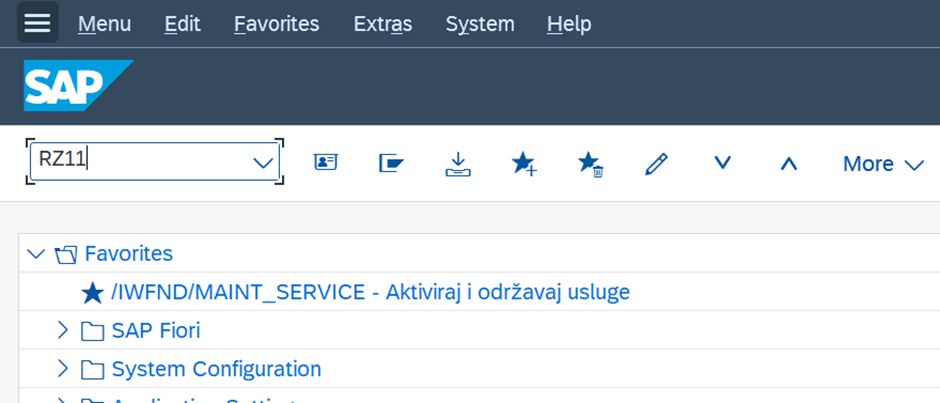
Search for the parameter: sapgui/user_scripting and click Display

Click Change Value (or CTRL+ f5)
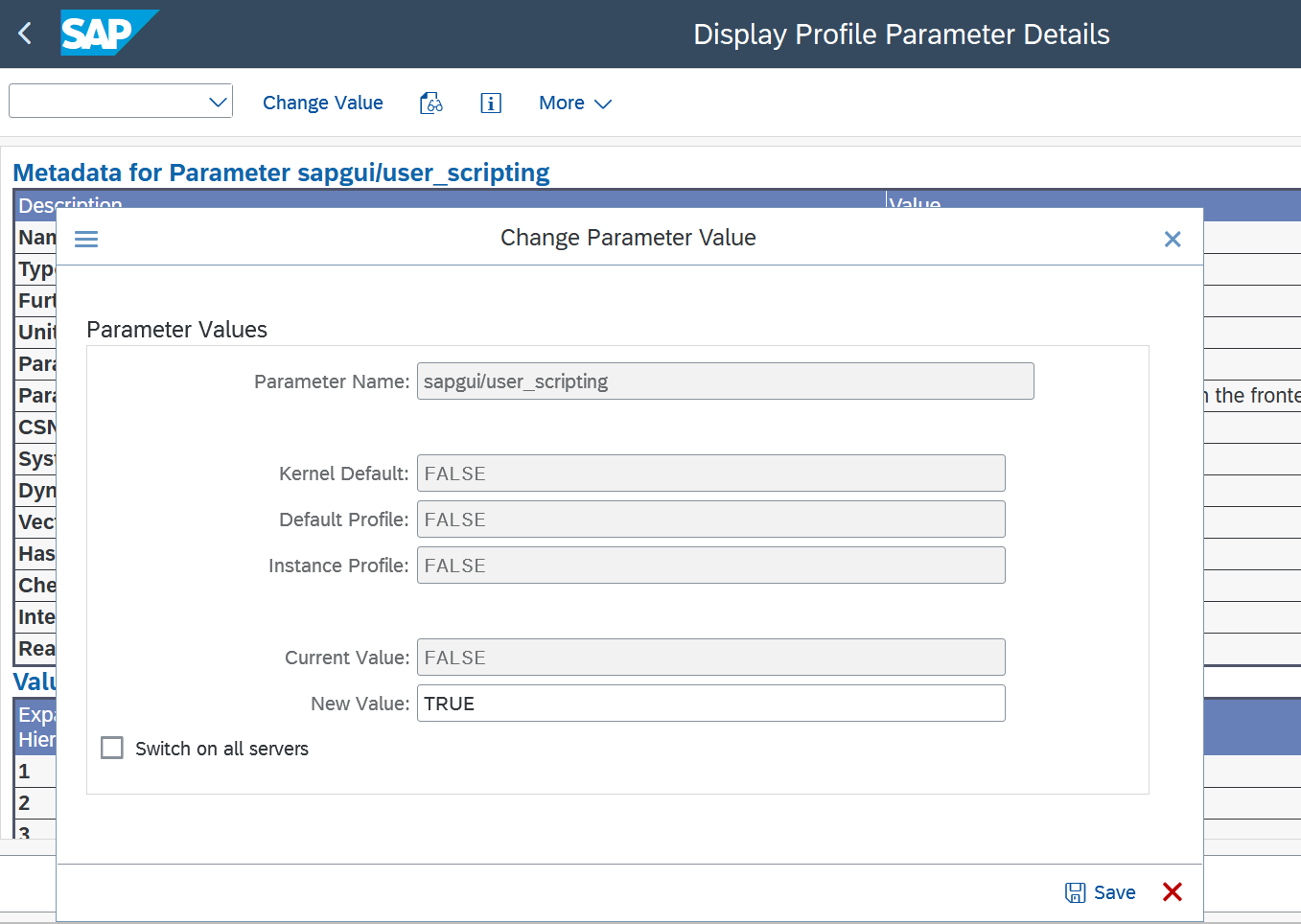
Verify that Current Value = TRUE. If it is FALSE, enter TRUE in New Value and save the change
Enabling SAP Scripting on the Client
In SAP GUI, go to: More → SAP GUI settings and actions → Options

Enable Enable Scripting and disable all other options below
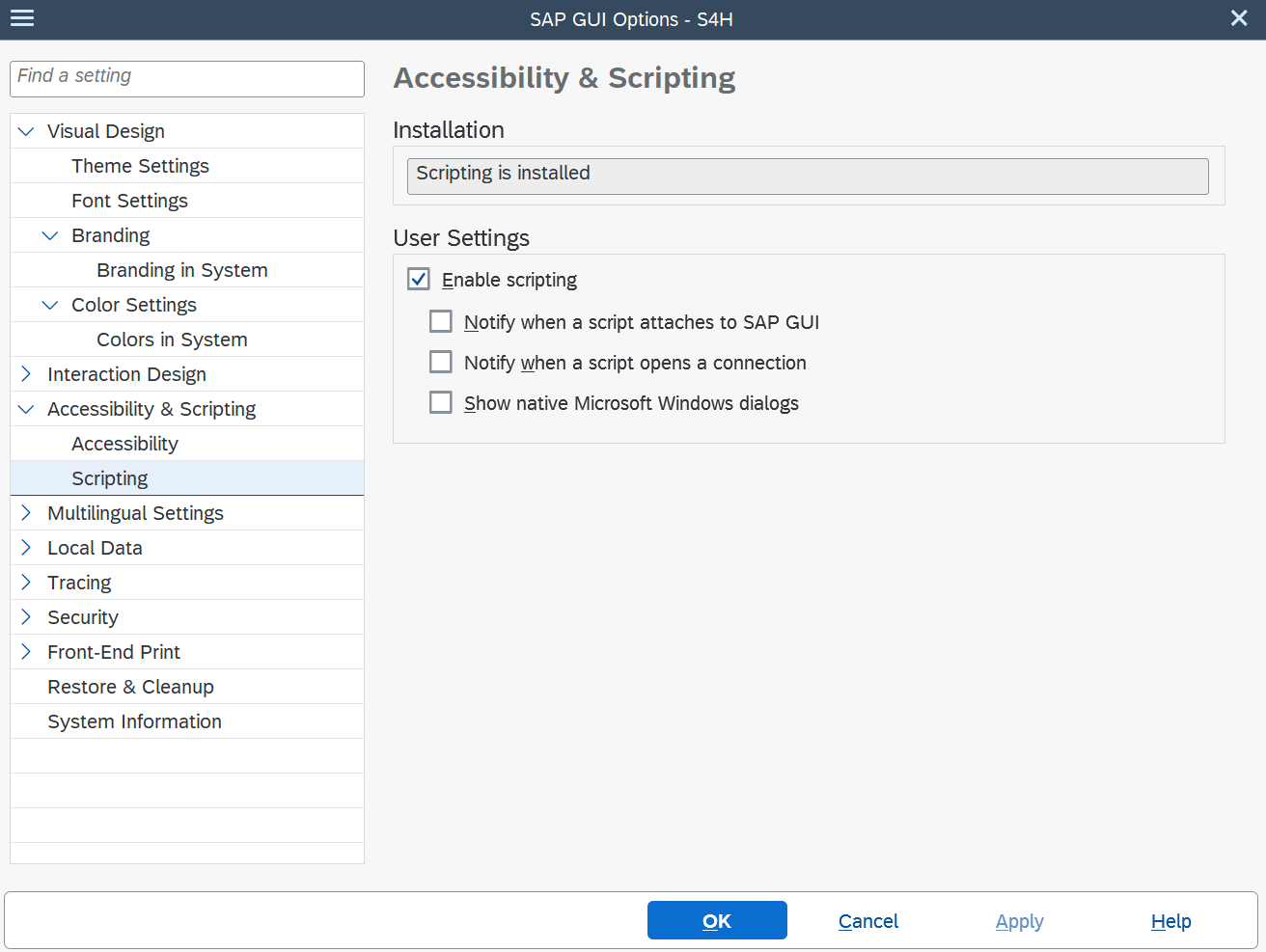
After completing these steps, SAP Scripting is ready to be used.
Preparation Before Recording
Before starting the recording carefully walk through the entire process in advance. This helps avoid:
- unnecessary steps
- incorrect navigation
- additional actions that should not be recorded
Whenever possible, use keyboard shortcuts (hotkeys) instead of mouse clicks:
- Enter – confirm / select function
- Ctrl + S – save
- Shift + F3 – exit the function
- other standard SAP shortcuts as applicable
Before starting the recording, log in to the SAP application manually.
Recording Process in SAP Recorder
Open the SAP application and log in manually. Once logged in, start the Recorder from the Process Editor using the shortcut CTRL + G. After the Recorder has started, click on the required functional button or transaction in SAP and execute the process exactly as it should be recorded. During execution, it is recommended to use keyboard inputs whenever possible in order to ensure clean and consistent recording. When the process is functionally complete, stop the Recorder. The Recorder will then automatically close the SAP session.
After the recording is finished, review the recorded steps in the Recorder to ensure that all actions were captured correctly. Copy the recorded steps and paste them into your target process. Please note that the Recorder does not capture passwords, so the password must be manually added to the Open SAP step where required.