Read Attribute From Web Element Step
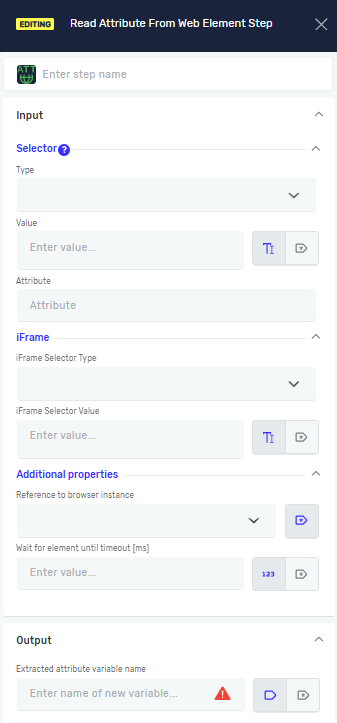
The Read Attribute From Web Element step gets a specific attribute's value from a web element. It saves this value in a string variable. Use this step to pull out data like href from a link or src from an image.
How to Use Read Attribute From Web Element
This step helps you get attribute values from elements on a web page.
Step 1: Add the Step to Your Process
- Drag and drop the Read Attribute From Web Element step into your automation process.
- Give the step a clear Step Name. This helps you find the step in your workflow.
Step 2: Configure Input Parameters
- Selector Type: Choose how you want to find the web element.
- Class Name
- CSS Selector
- Name
- Id
- Link Text
- Partial Link Text
- Tag Name
- XPath
- Selector Value: Type the value for your chosen selector type. For example, if you picked "Id", enter the element's ID here.
- Attribute: Type the exact name of the attribute you want to read (e.g.,
href,src,class). - Driver Reference: Give the variable that holds your web browser's driver instance.
- Wait for Element until timeout [ms]: Set the longest time (in milliseconds) the robot should wait for the element to show up on the page.
Step 3: Define Output Parameter
- Extracted attribute variable name: Enter the name of the string variable where the attribute value will be saved.
Parameters Explained
Step Name (Optional)
- A custom name for this step in your process.
- Example:
Read Image Source - Use it to make your process easier to understand.
Selector Type (Required)
- How the robot finds the web element.
- Options:
Class Name,CSS Selector,Name,Id,Link Text,Partial Link Text,Tag Name,XPath. - Pick the most reliable way for your web page.
Selector Value (Required)
- The specific value that matches your chosen
Selector Type. - Example: If
Selector TypeisId,Selector Valuecould bemyImageId. - You can use an existing variable here.
Attribute (Required)
- The name of the attribute you want to read from the web element.
- Example:
href(for a link's URL),src(for an image's source). - This must be an exact attribute name.
IFrame Selector Type (Optional)
- Defines how the iframe containing the target web element is identified.
- Options:
Class Name,CSS Selector,Name,Id,Link Text,Partial Link Text,Tag Name,XPath - Select the option that best identifies the iframe you want to interact with.
IFrame Selector Value (Optional)
- Specifies the value used to locate the iframe based on the selected IFrame Selector Type.
- Example: If IFrame Selector Type is
Id, the IFrame Selector Value could bepaymentIframe. - Use this when the element you want to interact with is located inside an iframe.
Driver Reference (Required)
- The variable that points to your active web browser session.
- Example:
browserDriver - This connects the step to the browser you are automating.
Wait for Element until timeout [ms] (Required)
- The longest time (in milliseconds) the robot waits for the web element to load.
- Example:
5000(for 5 seconds). - Set this to avoid errors if the page loads slowly.
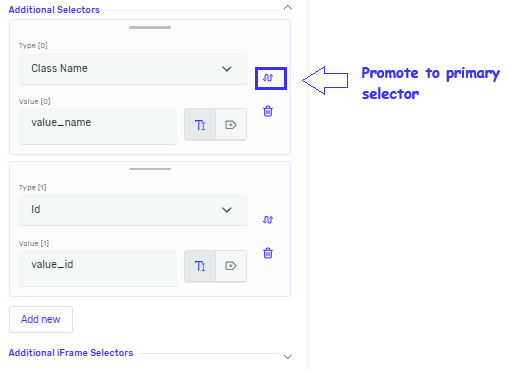
Addditional Selectors (Optional)
- List of selectors, allowing you to define multiple selectors for the same step
- If the primary selector fails and additional selectors are defined, the step will automatically try the additional selectors in order.
- You can add, remove, and reorder selectors at any time.
- Any selector can be promoted to the primary selector, which will swap its position with the current primary selector.
- Each selector is evaluated for the duration of the timeout defined on the step before moving on to the next one.
- If you want to promote a selector to be the primary selector, first provide all required details (selector type and value), then click the swap icon next to selector type.
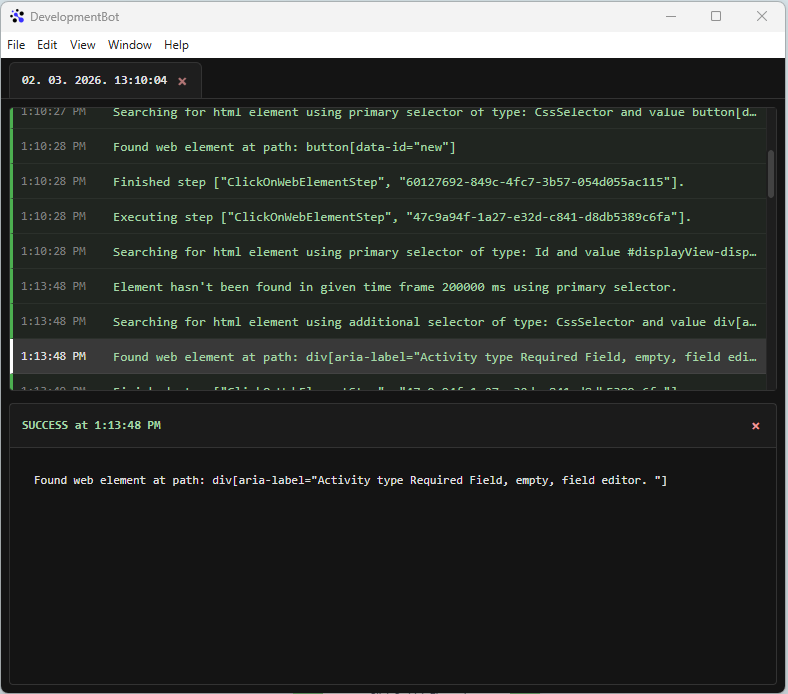
The log indicates which selector was successfully resolved. If a secondary selector from the selector list is consistently matched, you may consider setting it as the primary selector.
Extracted attribute variable name (Required)
- The name of the string variable that will hold the attribute's value.
- Example:
imageSrcValue - You can then use this variable in later steps.
Related Articles
Need Help?
Can't find what you're looking for? Join the Robotiq Community to get help from other users and the Robotiq team.