Open Web Browser Step
The Open Web Browser Step opens a web browser and goes to a specific website address. This step uses a Selenium driver to control the browser. The driver downloads by itself to match your chosen browser and its version.
How to Use the Open Web Browser Step
Use this step to begin automating tasks on the web by opening a browser window.
Step 1: Add the Open Web Browser Step
- Drag the Open Web Browser Step into your process workflow.
- Click on the step to change its settings.
Step 2: Set Up Browser Settings
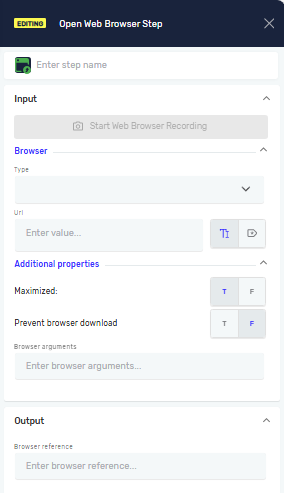
- Type: Pick your browser from the list.
- Chrome
- Edge
- URL: Type in the full web address you want to open. For example:
https://www.robotiq.ai - Maximized: Turn this on (
Tfor True) if you want the browser window to open full-screen. It's off (Ffor False) by default.
Step 3: Record Web Actions (Optional)
- After you pick the browser type and enter the URL, click the Start Web Browser Recording button.
- This lets you record what you do and choose items on the webpage.
Important: If you don't have internet or the robot isn't allowed to download the Selenium driver automatically, you'll need to download it yourself. Put the driver in this folder on your VM: C:\Users\%username%\.cache\selenium
Inside this folder, make another folder for your browser type (like chromedriver or msedgedriver). Inside that, make a win64 subfolder. Then, make another subfolder with the driver version (for example, 142.0.7444.61). Put the driver file inside this version folder.
Parameters Explained
Step Name (Optional)
- A name you choose for this step in your process.
Start Web Browser Recording (Optional)
- Starts recording to capture web elements and actions.
- This button shows up after you pick a browser type and enter a URL.
- For more information, see Record process.
Type (Required)
- The kind of web browser to open.
- Choices:
Chrome,Edge.
URL (Required)
- The full web address to open in the browser.
- Example:
https://www.robotiq.ai
Maximized (Required)
- Controls if the browser window opens full-screen.
T(True): Opens full-screen.F(False): Opens in a regular window (this is the default).
Prevent Browser Download (Required)
- Controls whether the browser automatically downloads the driver.
T(True): Prevents the browser from automatically downloading the driver.F(False): Allows the browser to automatically download the driver (default).
Browser arguments (Optional)
- Special commands given to the browser when it starts.
- These change how the browser acts, like turning on incognito mode or running without showing a window.
- Arguments are text, starting with
--. Put a space between multiple arguments. - Example:
--incognito --disable-popup-blocking
Common Issues
Problem: Selenium driver doesn't download by itself. Solution: Download the right Selenium driver for your browser and version yourself. Put it in C:\Users\%username%\.cache\selenium\[browser_type]\win64\[driver_version]\.
Related Articles
Need Help?
Can't find what you're looking for? Join the Robotiq Community to get help from other users and the Robotiq team.
Additional comments
When launching a Chromium-based browser (like Google Chrome or Microsoft Edge) using Selenium or any automation tool, you can pass special command-line arguments (also called flags) to customize the browser’s behavior. These arguments allow you to control how the browser starts such as enabling incognito mode, disabling popups, or running in headless mode.
Arguments are passed as strings, prefixed with --, and you can pass multiple arguments by separating them with a space.

Here are some of the most frequently used command‑line arguments for Chromium‑based browsers (Chrome, Edge) when automating via Selenium.
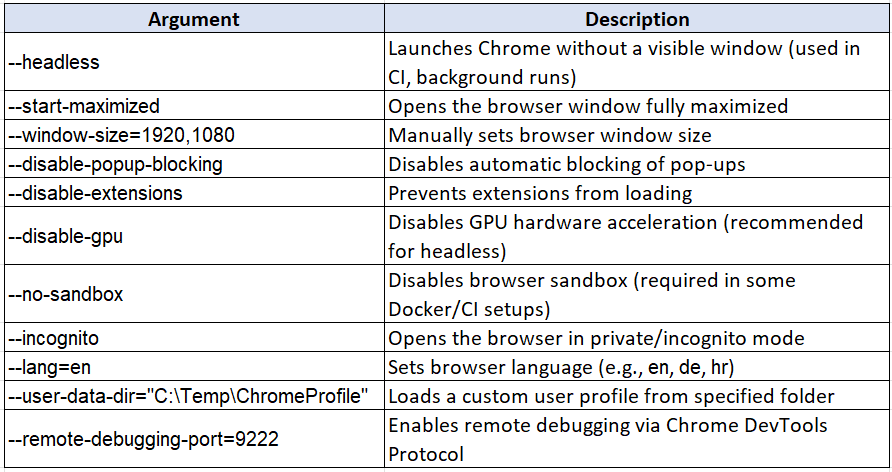
Most command-line arguments listed here work across Chromium-based browsers (like Chrome and Edge); however, be cautious with the WebDriver you are using, as some Microsoft Edge-specific arguments may not work in Chrome, and vice versa. This list covers flags that are generally compatible with multiple Chromium-based browsers.
NOTE: If you don’t have internet access or permission for the robot to automatically download the Selenium driver, it must be downloaded manually(link).
Reusing Browser Drivers in Functions
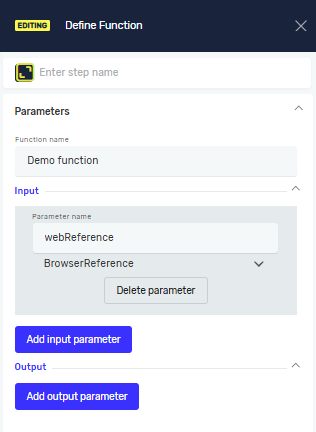
A dedicated variable type is available for browser driver references. This allows browser drivers to be reused across steps, accessed from Script steps, and passed as parameters to functions if needed, making web automations more flexible and reusable.
When passing a browser driver to a function, the parameter must be defined as an input parameter with the variable type BrowserReference. The parameter name does not need to match the original driver name and can use any custom name.
When calling the function, the system will offer only the web drivers that are currently available in the process.
Using BrowserReference in Script Steps
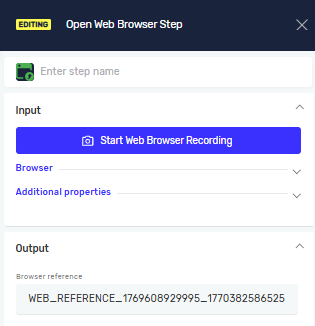
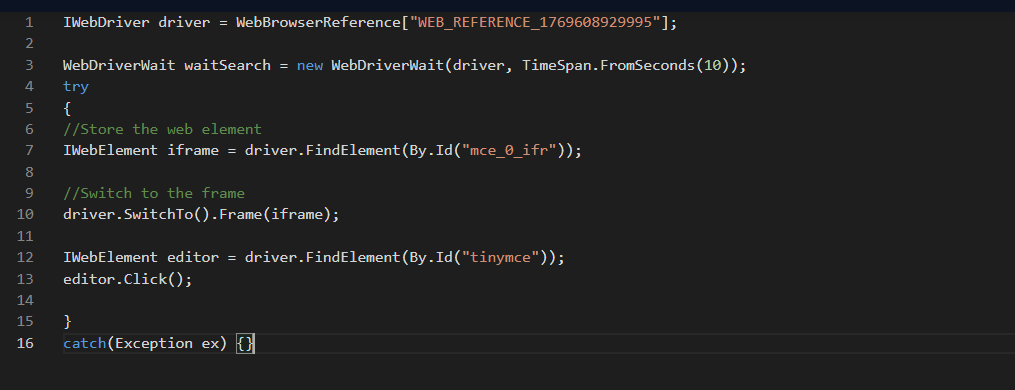
Browser driver references can also be used inside Script steps, allowing you to directly interact with the browser instance within your scripts. The value inside the brackets must match the reference ID defined in the Open Web Browser step.
IWebDriver driver = WebBrowserReference["WEB_REFERENCE_1769608929995_1770382586525"];
In this example, WEB_REFERENCE_1769608929995_1770382586525 represents the browser reference generated in the Open Web Browser step. Using this reference allows the script to interact with the same browser instance that was opened earlier in the process.