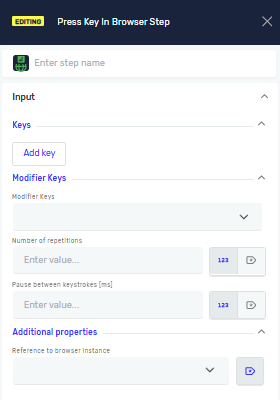
Press Key In Browser Step
The Press Key In Browser step sends keyboard input to the active browser page. Use this step when you need to simulate typing special keys, shortcuts, or repeated key presses.
How to Use the Press Key In Browser Step
Step 1: Add the Press Key In Browser Step
- Open your process in the Robotiq.ai editor.
- Drag the Press Key In Browser step into your workflow.
Step 2: Add Keys
- Click Add key.
- Under Keys, choose what key the robot should press
- Key type (choose one):
- Regular Key → letters, numbers, symbols
- Example:
A
- Example:
- Special Key → Enter, Tab, Escape, Arrow keys, etc.
- Example:
Enter
- Example:
- Regular Key → letters, numbers, symbols
- Key type (choose one):
Step 3: Add Modifier Keys (Optional)
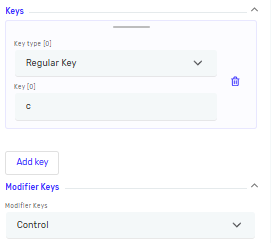
- Under Modifier Keys, choose keys that should be held during key press.
- Available options include:
ControlShiftAltLeftControlLeftShiftLeftAlt- and more..
- Example shortcut:
Control + C,Control + V
Step 4: Configure Repetition
- Add number of repetitions -how many times the key press should repeat (If left empty, the default value is 1, meaning the key is pressed one time).
- Pause between keystrokes [ms]
- Delay between repeated presses.
Parameters Explained
Step Name (Optional)
- A custom name for the step.
- Example:
Press F5 - Use this to make your steps easy to understand.
Add key (Required)
- Key type (choose one):
- Regular Key → letters, numbers, symbols
- Example:
A
- Example:
- Regular Key → letters, numbers, symbols
Special Key → Enter, Tab, Escape, Arrow keys, etc.
- Example:
Enter
Modifier Keys (Optional)
- Under Modifier Keys, choose keys that should be held during key press.
Number of repetitions (Optional)
- How many times the key press should repeat
- If left empty, the default value is 1, meaning the key is pressed one time
Pause between keystrokes (Optional)
- The delay (in milliseconds) between each character the robot types.
Driver Reference (Required)
- The variable that holds the web browser.
- Example:
myBrowserDriver - This links the click to a specific open browser.
Related Articles
- Type Into Web Element Step - Learn how to type text into web elements.
- Read Text From Web Element Step - Learn how to get text from web elements.
- Record process - Find out how to record your browser actions to create steps automatically.
Need Help?
Can't find what you're looking for? Join the Robotiq Community to get help from other users and the Robotiq team.