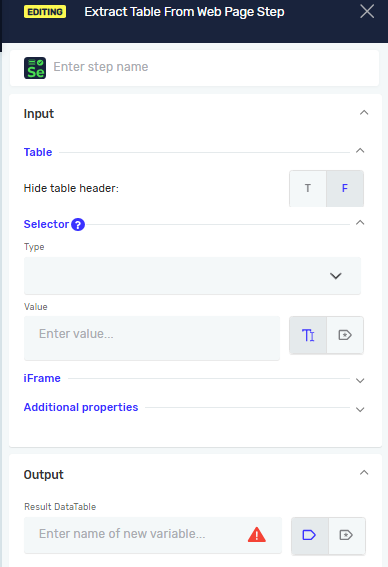
Extract Table From Web Page Step
The Extract Table From Web Page Step takes data from a web table and puts it into a datatable variable. Use this to get organized data from web pages for your automation.
How to Use the Extract Table From Web Page Step
This step saves data from a web table into a datatable variable.
Step 1: Add the Extract Table From Web Page Step
- Drag and drop the Extract Table From Web Page Step into your process flow.
Step 2: Configure Input Parameters
Important: You need to tell the step how to find the web table and how to get the data from it.
Show column names in first row (Required)
- Set to
T(true) if the first row of the web table has column titles. - Set to
F(false) if the first row is data.Fis the default setting.
Columns (Required)
- Type a list of the column names you want to save, separated by commas.
- Example:
Name, Age, City
Selector Type (Required)
- Pick how to find the web table on the page.
- Options include:
- Class Name
- CSS Selector
- Name
- Id
- Link Text
- Partial Link Text
- Tag Name
- XPath
Selector Value (Required)
- Give the specific value for the Selector Type you picked.
- Example: If Selector Type is
Id, type the table's ID (e.g.,myDataTable).
Wait for Element until timeout [ms] (Required)
- Type the longest time in milliseconds the step should wait for the table to show up.
- Use an existing variable or a direct number.
- Example:
10000(waits for 10 seconds)
Step 3: Configure Output Parameters
Driver Reference (Required)
- Type the variable name that holds your active Selenium driver.
Result variable name (Required)
- Give a name for the datatable variable where the table data will be saved.
- Example:
extractedTableData
Element present (Required)
- Assign an existing or new true/false variable.
- This variable will be
Trueif the element was found,Falseif not.
Step 4: Configure Error Handling
Throw exception (Required)
- Set to
T(true) if you want the process to stop and show an error if the step fails. - Set to
F(false) if you want the process to keep going even if the step fails.Fis the default setting.
Related Articles
- Record process - Find out how to record your browser actions to create steps automatically.
- Browser Group - Find out how to use the Browser Group.
- Save Data Table to Excel
- Select From Data Table Variable Step
- Datatable Read Step
- Write Value To Data Table Step
- Add Row In Data Table Step
- Add Column In Data Table Step
- Delete Row In Data Table Step
- Delete Column In Data Table Step
- Update Value In Data Table Step
Need Help?
Can't find what you're looking for? Join the Robotiq Community to get help from other users and the Robotiq team.