Extract Table Columns From Web Page Step
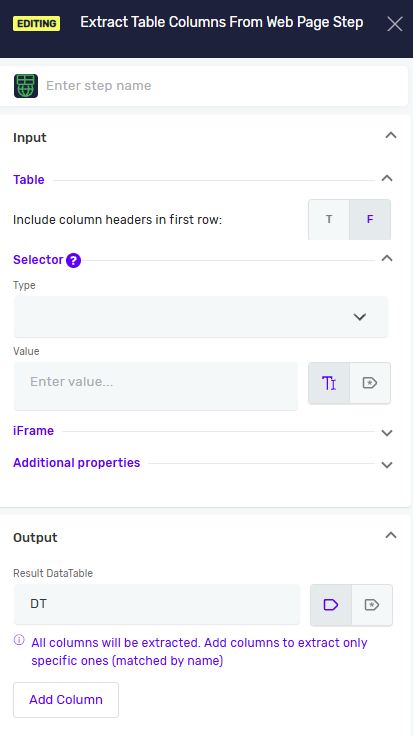
The Extract Table Columns From Web Page Step takes data from a web table and puts it into a datatable variable. You can extract the whole table or only the columns you choose, matched by their names. Use this to get organized data from web pages for your automation.
How to Use the Extract Table Columns From Web Page Step
This step saves data from a web table into a datatable variable.
Step 1: Add the Extract Table Columns From Web Page Step
- Drag and drop the Extract Table Columns From Web Page Step into your process flow.
Step 2: Tell it Which Table to Read
Important: You need to tell the step how to find the web table and how to get the data from it.
- Pick a Selector Type from the dropdown menu. This tells Robotiq.ai how to find the web table.
- Type in the Selector Value. This is the specific value for the selector type you picked.
Step 3: Choose What to Extract
- Set Include column headers in first row to
TorF. - Click Add Column for each column you want to extract. For every column, enter its name and choose its type.
- If you do not add any columns, the entire table is extracted.
Step 4: Choose Where to Save the Result
Enter the name of the datatable variable in Result DataTable or pick an existing DT. The extracted data is saved there.
Step 5: Configure Error Handling
Throw exception (Required)
- Set to T (true) to stop the process with an error when the table is not found. The Element Present variable is not available in this case.
- Set to F (false) to let the process continue when the table is not found. The Element Present variable shows whether the table was found.
Parameters Explained
Step Name (Optional)
- A custom name for the step.
- Example:
extract orders table - Use this to make your steps easy to understand.
Selector Type (Required)
- How Robotiq.ai finds the web table.
- Options:
Class Name,CSS Selector,Name,Id,Link Text,Partial Link Text,Tag Name,XPath - Pick the type that best identifies the table you want to read.
Selector Value (Required)
- The specific value for the selector type you chose.
- Example: If
Selector TypeisId,Selector Valuemight bemyDataTable. - You can use an existing variable name or type in a direct value.
IFrame Selector Type (Optional)
- Defines how the iframe containing the target web element is identified.
- Options:
Class Name,CSS Selector,Name,Id,Link Text,Partial Link Text,Tag Name,XPath - Select the option that best identifies the iframe you want to interact with.
IFrame Selector Value (Optional)
- Specifies the value used to locate the iframe based on the selected IFrame Selector Type.
- Example: If IFrame Selector Type is
Id, the IFrame Selector Value could bepaymentIframe. - Use this when the element you want to interact with is located inside an iframe.
Driver Reference (Required)
- The variable that holds the web browser.
- Example:
myBrowserDriver - This links the click to a specific open browser.
Wait for Element disappears until timeout [ms] (Required)
- The longest time in milliseconds the step should wait for the table to show up.
- You can use an existing variable or a direct number.
Addditional Selectors (Optional)
- List of selectors, allowing you to define multiple selectors for the same step
- If the primary selector fails and additional selectors are defined, the step will automatically try the additional selectors in order.
- You can add, remove, and reorder selectors at any time.
- Any selector can be promoted to the primary selector, which will swap its position with the current primary selector.
- Each selector is evaluated for the duration of the timeout defined on the step before moving on to the next one.
- If you want to promote a selector to be the primary selector, first provide all required details (selector type and value), then click the swap icon next to selector type.
Include column headers in first row: (Required)
- Defines whether the header row of the web table is part of the result.
- Set to
T(true) to include the column headers as the first row of the result. In this case all extracted columns must be of type String, because header text cannot be converted to other types. - Set to
F(false) to extract only the data rows.Fis the default setting.
Columns to extract (Optional)
- The columns you want to extract, added one by one with the Add Column button.
- Each column has a name and a type. The name is matched with the column headers of the web table. You can use an existing variable name or type in a direct value.
- If Include column headers in first row is T, only String is available as the type.
- If no columns are added, the entire table is extracted and all columns are of type String.
- This list is not available when an existing datatable variable is selected as Result DataTable. If that datatable has no columns defined, all columns of the web table are extracted into it. If it has columns defined, only the columns that the datatable has are extracted.
Result DataTable (Required)
- The name of the datatable variable where the extracted table is saved.
- If you enter a new name, the datatable is created by the step.
- If you pick an existing datatable variable that has columns defined, the names of those columns are matched with the headers of the web table and only those columns are extracted, using the column types defined in the variable. If the variable has no columns defined, the entire table is extracted. The variable is replaced with the extracted data.
Element present (Required)
- A true/false variable that shows whether the table was found.
- The variable is True if the table was found, False if not.
- Define it when Throw exception if element not found is F, so you can decide in your process what to do when the table is missing.
Extract a Table Using the Recorder
Instead of configuring the step manually, you can create it with the Recorder.
- Start recording and open the web page that contains the table.
- Right-click the table.
- Select the option to extract the table.
- Enter the name of the new datatable variable where the extracted data will be saved.
- Mark the columns you want to extract.
- Confirm. The Extract Table Columns From Web Page step is added to your process with the selector, the Result DataTable, and the selected columns already filled in.
You can adjust all values afterwards in the step settings.
Related Articles
- Record process - Find out how to record your browser actions to create steps automatically.
- Browser Group - Find out how to use the Browser Group.
- Save Data Table to Excel
- Select From Data Table Variable Step
- Datatable Read Step
- Write Value To Data Table Step
- Add Row In Data Table Step
- Add Column In Data Table Step
- Delete Row In Data Table Step
- Delete Column In Data Table Step
- Update Value In Data Table Step
Need Help?
Can't find what you're looking for? Join the Robotiq Community to get help from other users and the Robotiq team.