
Upload File To Web Page Step
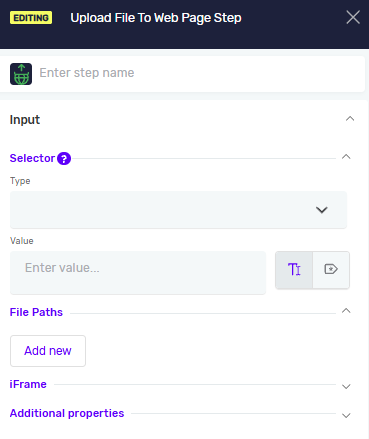
The Upload File To Web Page Step uploads files into web elements that accept file input. Use this step when your process needs to attach a document, image or any other file on a web page, for example when filling in a form or submitting an attachment.
How to Use Upload File To Web Page Step
This step selects one or more files from the computer where the robot runs and uploads them into a file input element on the web page.
Step 1: Add the Upload File To Web Page Step
- Open your process in the Robotiq.ai editor.
- Drag the Upload File To Web Page step into your workflow.
Step 2: Tell it Where to Upload
- Pick a Selector Type from the dropdown menu. This tells Robotiq.ai how to find the web element.
- Type in the Selector Value. This is the specific value for the element, based on the type you picked.
Important: The selector must point to the element that accepts the file input. You can find selector values by looking at the elements in your web browser’s developer tools.
Step 3: Add the Files
- Click Add new to add a file path.
- Enter the full path to the file you want to upload.
- Repeat to add more files. You can add, remove, and reorder files at any time.
Important: Several files can be uploaded at once only if the element on the page allows multiple files. If the element accepts a single file, add only one path. The files must be accessible from the computer where the robot runs.
Step 4: Configure Error Handling
Throw exception if element not found (Required)
- Set to
T(true) to stop the process with an error if the element is not found. - Set to
F(false) to let the process continue if the element is not found. Use the Element Present variable to check whether the element was found.
Parameters Explained
Step Name (Optional)
- A custom name for the step.
- Example:
upload invoice - Use this to make your steps easy to understand.
Selector Type (Required)
- How Robotiq.ai finds the web element.
- Options:
Class Name,CSS Selector,Name,Id,Link Text,Partial Link Text,Tag Name,XPath - Pick the type that best identifies the element you want to upload to.
Selector Value (Required)
- The specific value for the selector type you chose.
- Example: If
Selector TypeisId,Selector Valuemight befileUpload. - You can use an existing variable name or type in a direct value.
File Paths (Required)
- The list of files to upload, added one by one with the Add new button.
- Each entry is the full path to a file. Example:
C:\Documents\invoice.pdf - You can use an existing variable name or type in a direct value.
- Add more than one file only if the element on the page accepts multiple files.
IFrame Selector Type (Optional)
- Defines how the iframe containing the target web element is identified.
- Options:
Class Name,CSS Selector,Name,Id,Link Text,Partial Link Text,Tag Name,XPath - Select the option that best identifies the iframe you want to interact with.
IFrame Selector Value (Optional)
- Specifies the value used to locate the iframe based on the selected IFrame Selector Type.
- Example: If IFrame Selector Type is
Id, the IFrame Selector Value could beuploadIframe. - Use this when the element you want to interact with is located inside an iframe.
Driver Reference (Required)
- The variable that holds the web browser.
- Example:
myBrowserDriver - This links the step to a specific open browser.
Wait for Element until timeout [ms] (Required)
- The most time (in milliseconds) to wait for the element to load.
- Example:
5000(waits for 5 seconds) - Set a reasonable timeout so your processes don't fail too quickly.
Additional Selectors (Optional)
- List of selectors, allowing you to define multiple selectors for the same step
- If the primary selector fails and additional selectors are defined, the step will automatically try the additional selectors in order.
Element Present (Optional)
- A true/false variable that shows whether the element was found.
- Define it when Throw exception if element not found is
F.
Related Articles
- Record process - Find out how to record your browser actions to create steps automatically.
- Browser Group - Find out how to use the Browser Group.
Need Help?
Can't find what you're looking for? Join the Robotiq Community to get help from other users and the Robotiq team.