Manage Browser Tabs Or Windows Step
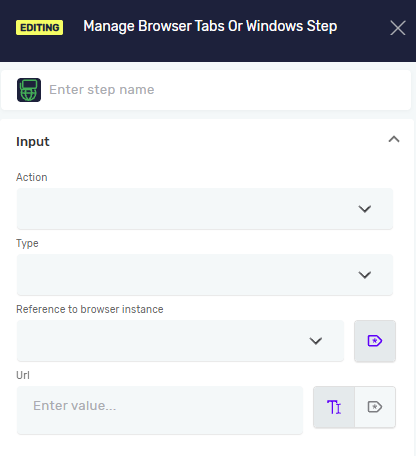
The Manage Browser Tabs Or Windows step lets you control the browser tabs and windows used by your process. It can open a new tab or window, switch to another tab, and close the current tab. Use this step when your process works with links that open in a new tab, pop-up pages, or multiple pages at once and you need to move between them.
Manage Browser Tabs Or Windows Step
Step 1: Add the Manage Browser Tabs Or Windows Step
- Open your process in the Robotiq.ai editor.
- Drag the Manage Browser Tabs Or Windows step into your workflow.
Step 2: Choose the Action
- Pick an Action from the dropdown menu: Open New, Switch To, or Close.
- The fields shown below the action depend on what you picked.
Step 3: Fill in the details for the chosen Action
If you picked Open New:
- Select the Type: Tab or Window.
- Enter the URL you want to open in the new tab or window.
If you picked Switch To:
- Choose which tab to switch to under Select Tab:
- First Tab
- Last Tab
- By Tab Title
- If you picked By Tab Title, enter the title of the tab you want to switch to. The title is case sensitive.
If you picked Close:
- Nothing else needs to be filled in. The step closes the tab that currently has focus.
- After the tab is closed, focus moves to the tab on its right. If there is no tab on the right, focus moves to the tab on its left.
Important: Switch To and Close work on tabs only. The Type option is relevant only for the Open New action.
Parameters Explained
Step Name (Optional)
- A custom name for the step.
- Example:
open invoice in new tab - Use this to make your steps easy to understand.
Action (Required)
- The operation the step performs on the browser.
- Options:
Open New,Switch To,Close - The other fields of the step depend on the selected action.
Type (Required for Open New)
- Defines whether a new tab or a new window is opened.
- Options:
TabWindow - Relevant only for the Open New action. For Switch To and Close the step always works with tabs, so this field is disabled.
Driver Reference (Required)
- The variable that holds the web browser.
- Example:
myBrowserDriver - This links the step to a specific open browser.
URL (Required for Open New)
- The web address that is opened in the new tab or window.
- Example:
https://www.example.com - You can use an existing variable name or type in a direct value.
Select Tab (Required for Switch To)
- Defines which tab the step switches to.
- Options:
First Tab,Last Tab,By Tab Title - By Tab Title switches to the tab whose title you specify.
Tab Title (Required for By Tab Title)
- The title of the tab you want to switch to.
- Example:
Invoices - Dashboard - The title is case sensitive.
- You can use an existing variable name or type in a direct value.
Related Articles
- Open Web Browser - Find out how to open a browser and get its reference.
- Browser Group - Find out how to use the Browser Group.
Need Help?
Can't find what you're looking for? Join the Robotiq Community to get help from other users and the Robotiq team.