
Get Web Element Collection Step
The Get Web Element Collection Step finds all web elements on a page that match a selector. It returns a list with the XPath selector of every element found and the number of elements found. Use this step when a page contains repeating elements, such as list items, table rows or search results, and you want to process each of them or count them.
How to Use Get Web Element Collection Step
This step searches the page for all elements that match the selector and saves the result into variables.
Step 1: Add the Get Web Element Collection Step
- Open your process in the Robotiq.ai editor.
- Drag the Get Web Element Collection step into your workflow.
Step 2: Tell it What to Find
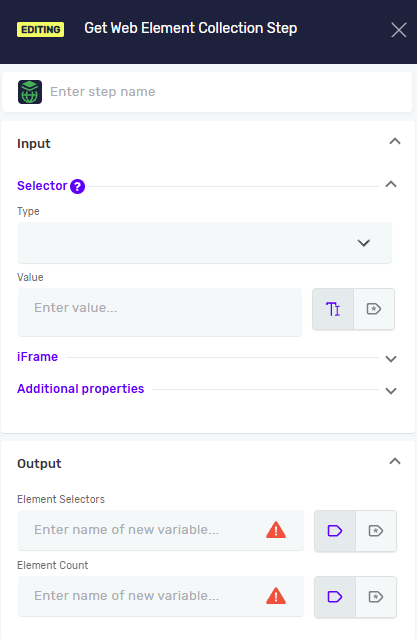
- Pick a Selector Type from the dropdown menu. This tells Robotiq.ai how to find the web elements.
- Type in the Selector Value. This is the value that matches all the elements you want to find, based on the type you picked.
Important: The selector should match every element you want in the collection, not a single element. You can find selector values by looking at the elements in your web browser’s developer tools.
Step 3: Choose Where to Save the Result
- Assign a variable for the list of found elements. The list contains the XPath selector of each found element.
- Assign a variable for the number of found elements.
Important: Make sure that all the elements you want to find are loaded on the page before the step runs. Elements that appear on the page later will not be part of the result.
Using the Result
The XPath selectors in the list can be used in other web browser steps. For example, loop through the list and use each XPath as the Selector Value, with Selector Type set to XPath, in a Click On Web Element Step or a Read Web Element Text Step. The element count can be used in conditions, for example to check that at least one result was found.
Parameters Explained
Step Name (Optional)
- A custom name for the step.
- Example:
get all product cards - Use this to make your steps easy to understand.
Selector Type (Required)
- How Robotiq.ai finds the web elements.
- Options:
Class Name,CSS Selector,Name,Id,Link Text,Partial Link Text,Tag Name,XPath - Pick the type that best identifies the group of elements you want to find.
Selector Value (Required)
- The specific value for the selector type you chose.
- Example: If
Selector TypeisClass Name,Selector Valuemight beproduct-card. - You can use an existing variable name or type in a direct value.
IFrame Selector Type (Optional)
- Defines how the iframe containing the elements is identified.
- Options:
Class Name,CSS Selector,Name,Id,Link Text,Partial Link Text,Tag Name,XPath - Select the option that best identifies the iframe you want to interact with.
IFrame Selector Value (Optional)
- Specifies the value used to locate the iframe based on the selected IFrame Selector Type.
- Example: If IFrame Selector Type is
Id, the IFrame Selector Value could bepaymentIframe. - Use this when the elements are located inside an iframe.
Driver Reference (Required)
- The variable that holds the web browser.
- Example:
myBrowserDriver - This links the step to a specific open browser.
Wait for Element until timeout [ms] (Required)
- The step stops waiting as soon as at least one matching element is found.
- The longest time in milliseconds the step should wait for elements to show up.
- Example:
5000(waits for 5 seconds) - Set a reasonable timeout so your processes don't fail too quickly.
Addditional Selectors (Optional)
- List of selectors, allowing you to define multiple selectors for the same step
- If the primary selector fails and additional selectors are defined, the step will automatically try the additional selectors in order.
Element Selectors (Required)
- The variable where the list of found elements is saved.
- Each item in the list is the XPath selector of one found element.
Element Count (Required)
- The variable where the number of found elements is saved.
Related Articles
- Click On Web Element Step - Click an element found by its selector.
- Browser Group - Find out how to use the Browser Group.
- Record process - Find out how to record your browser actions to create steps automatically.
Need Help?
Can't find what you're looking for? Join the Robotiq Community to get help from other users and the Robotiq team.